
Tutorial
Run your first study
 2 clips
How a study fits together
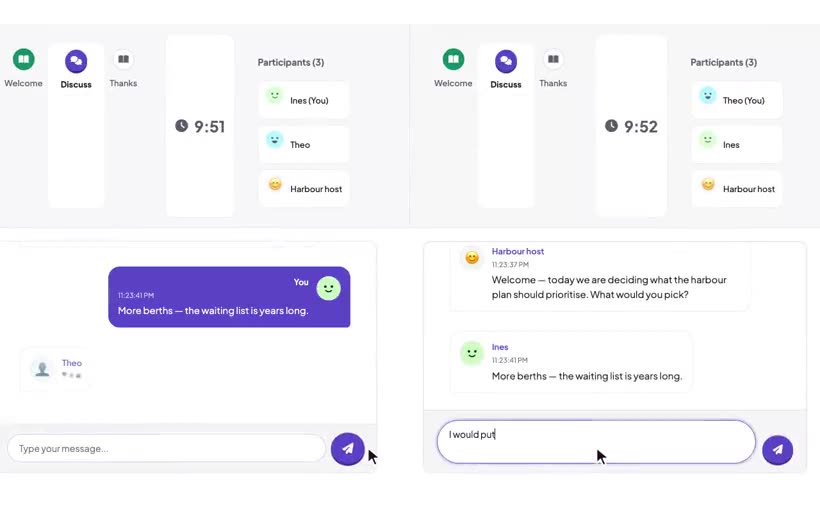
A Carrier study has four parts: chamberlines, chambers, segments and the cast. This tutorial shows them in one small study, then two participants take it.
 3 clips
Find your way around the builder
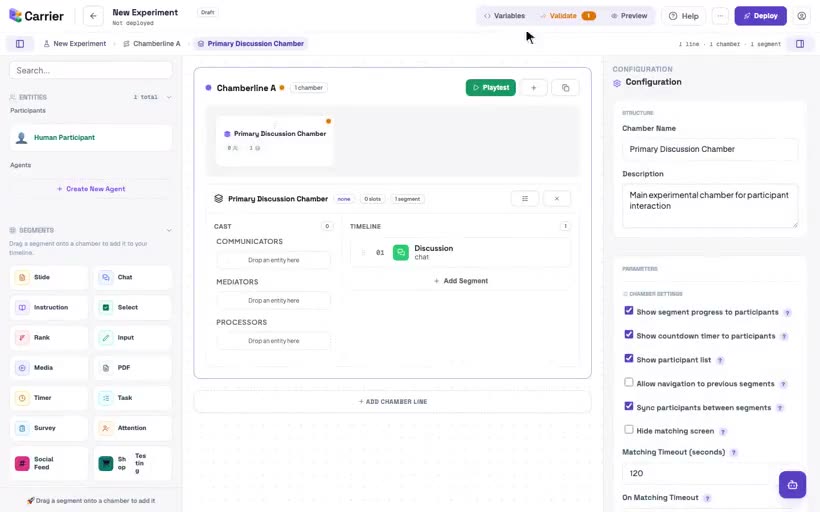
Start a new experiment from the dashboard, learn the function of each area of the builder, and save the experiment with Deploy.
 3 clips
Add a chamberline
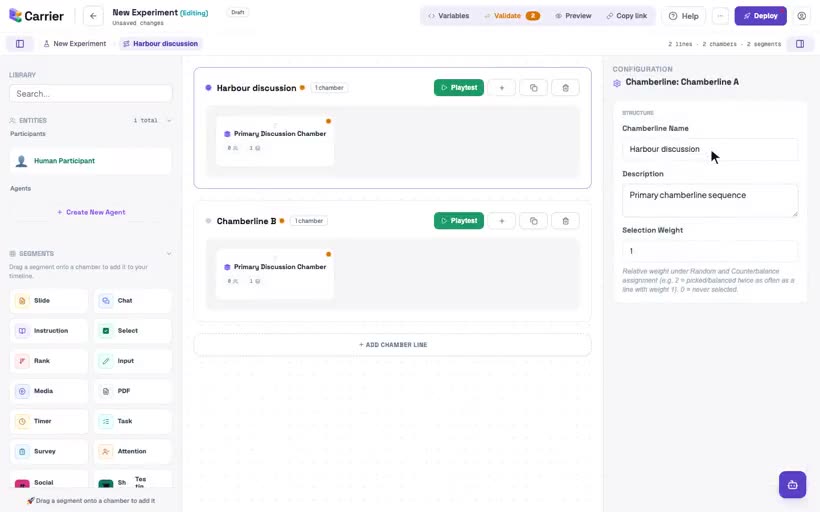
Add a second path through the study, give a chamberline a name, copy a chamberline, and delete a chamberline.
 3 clips
Add a chamber
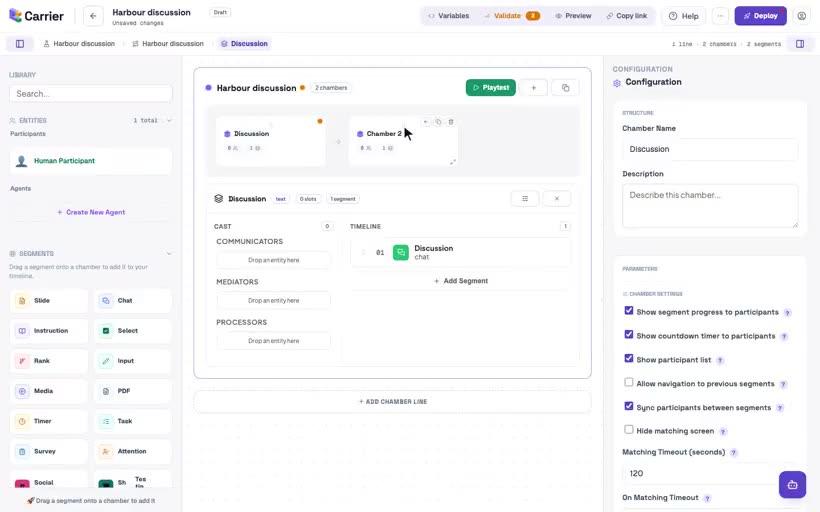
Name a chamber, add a second chamber, change the order of chambers, and remove a chamber. Also learn how a chamber sets the groups of participants.
 3 clips
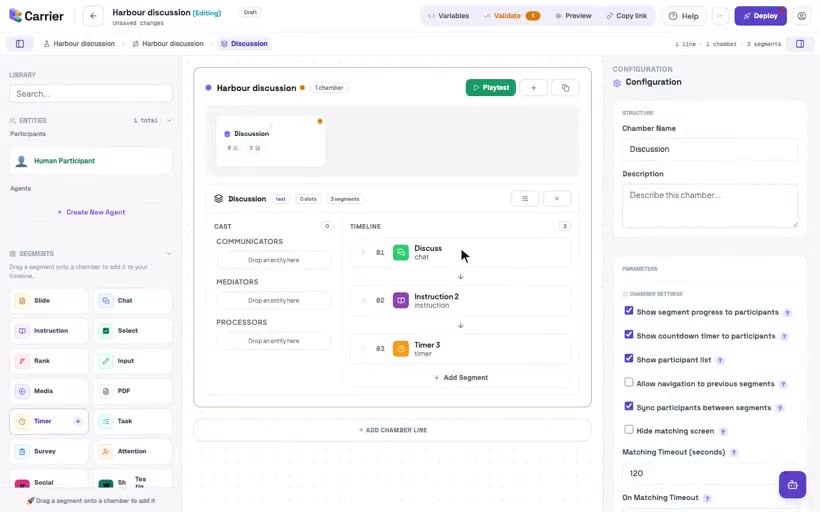
Drag a segment into a chamber
Add segments from the library, put them in order, remove a segment, and open the settings of a segment. The settings of a chat include text, audio or video.
 2 clips
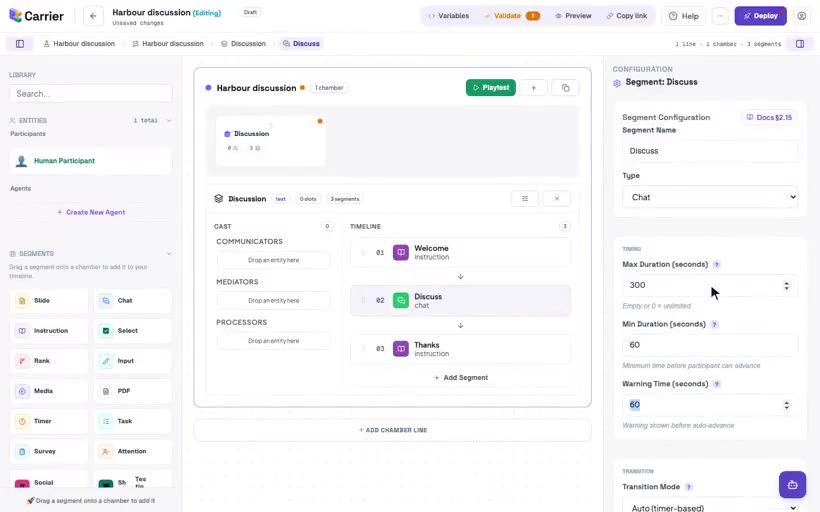
How a segment ends and the next begins
Set the maximum and minimum time of a segment, and learn the four transition modes: Auto, Manual, Sync and Host.
 1 clip
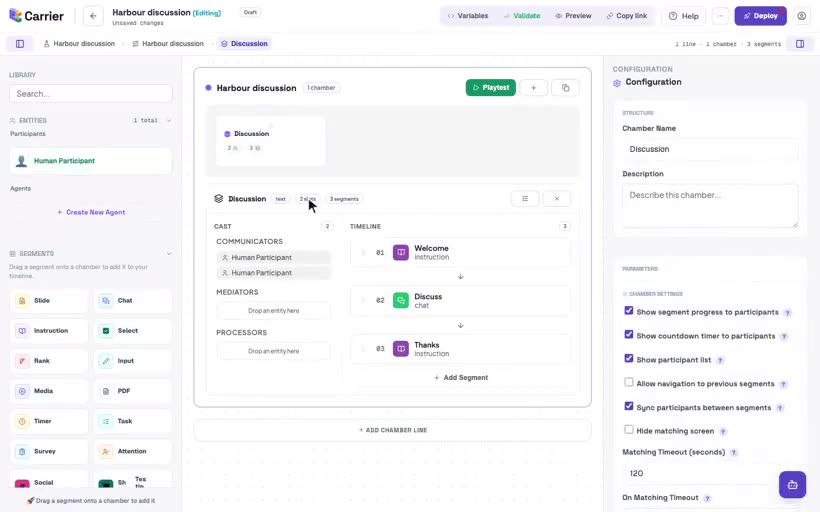
Add a human participant to the room
Add seats for people to a chamber. Each human slot is one participant. Matching waits for the same number of participants as there are slots.
 2 clips
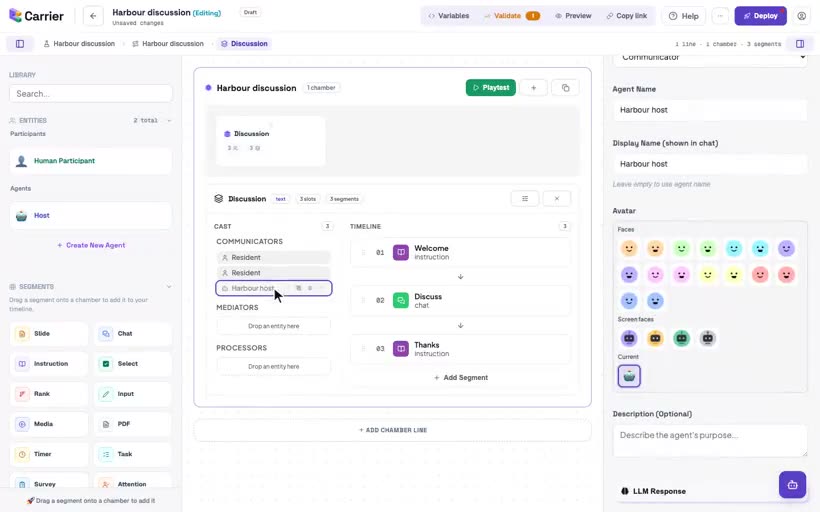
Add an agent to the room
Make an agent, give it the name that participants see, and put it in a chamber with the participants.
 6 clips
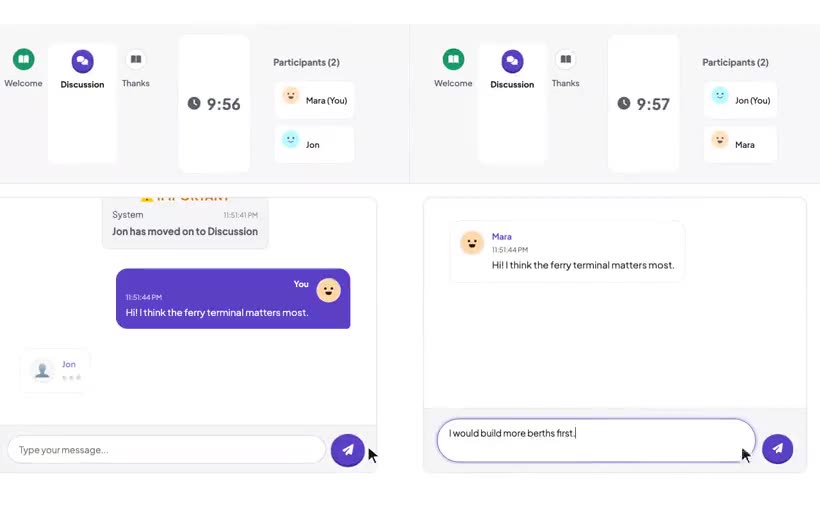
Your first study in ten minutes
Make a new experiment with a welcome page, a chat for pairs and a closing page. Check it, save it, open it and share it. Then two participants take it.
 5 clips
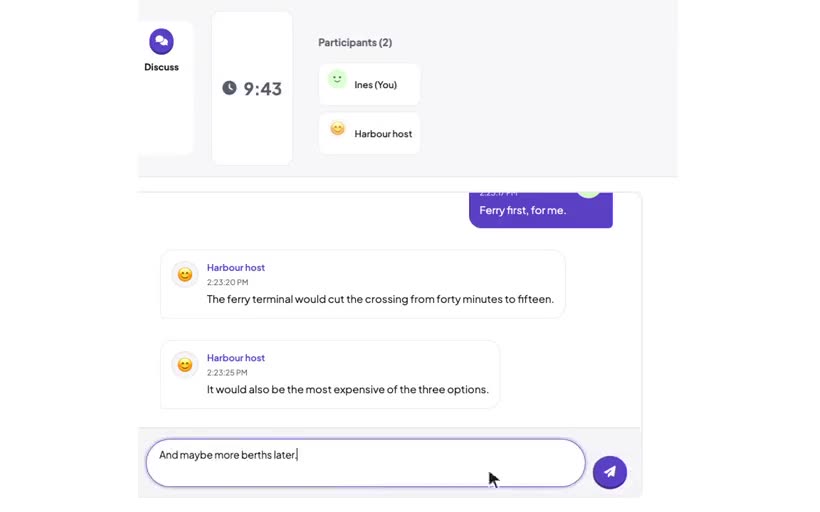
A scripted confederate
A scripted agent says only your lines. Make a timed greeting, a keyword reply with a follow-up, and a line at a number of messages.
 4 clips
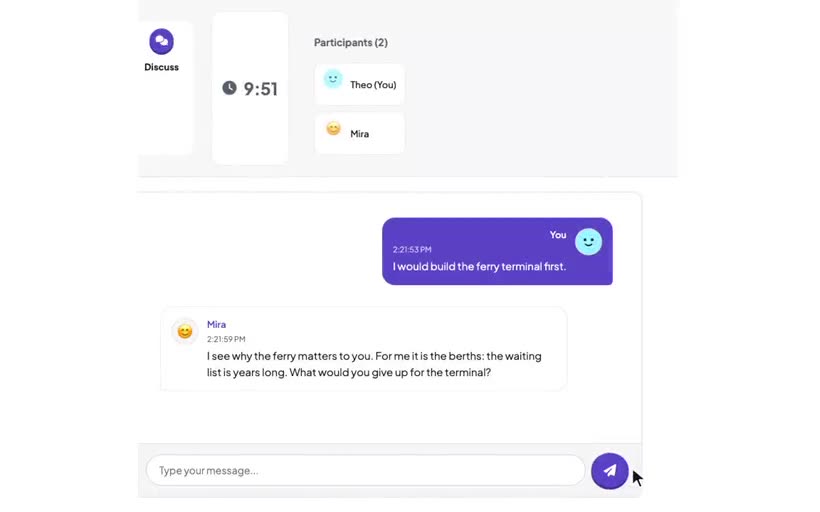
An AI partner in a chat
Make an agent reply with an AI model. Set its provider, model, prompt and reply timing. Add the experiment's API key and change the provider.
 4 clips
Slides: a briefing deck
Give participants information with a short deck. Make the slides, decide if participants can go back, and see the path of each participant.
 3 clips
Instruction pages that use answers
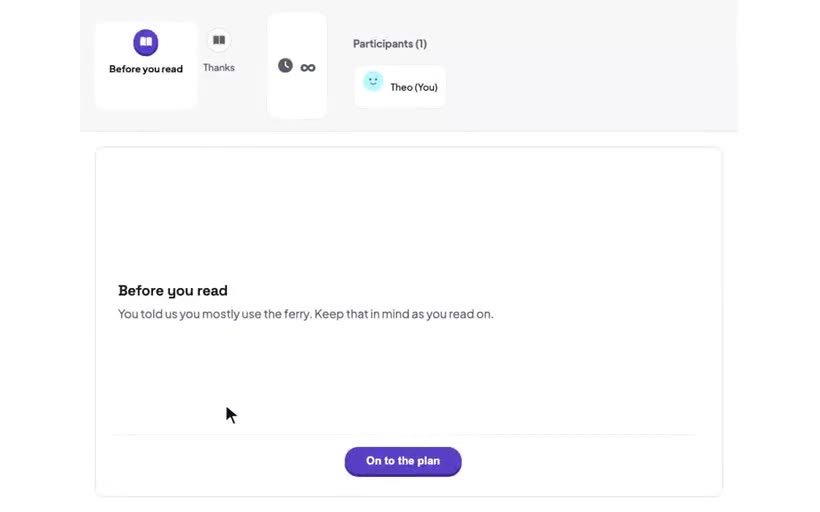
Write an instruction page in Markdown, set the label of its button, and show an earlier answer in the text with a variable.
 3 clips
Rank, and see the group's ranking
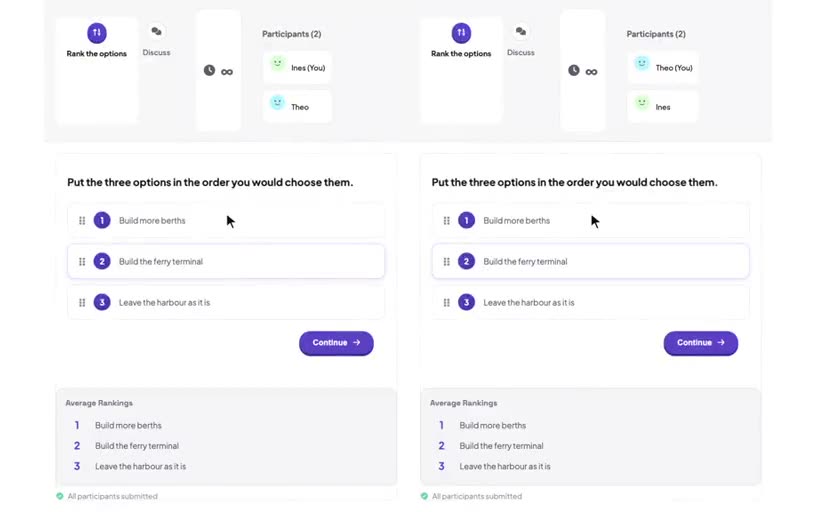
Each person ranks the options on their screen. The average ranking of the group shows while they rank. Then the group discusses it.
 2 clips
Watch a clip before you discuss
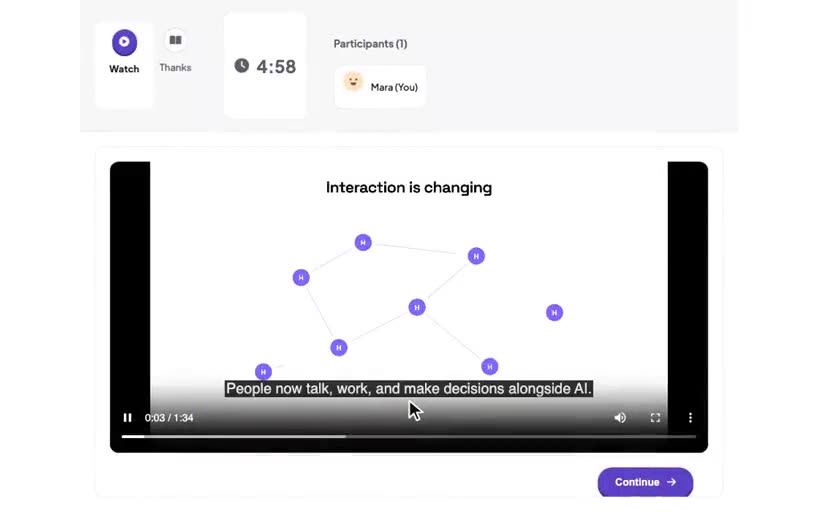
Show a video or audio clip: set its address, a poster frame and captions, and if participants can pause it. Know what Carrier records and what it does not record.
 3 clips
Wait together: timers and synchronised starts
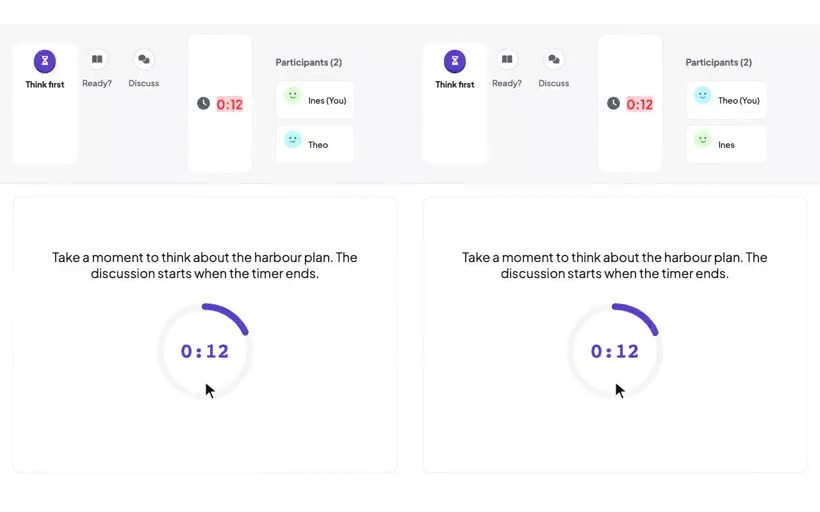
A timed pause with a countdown before the discussion, then a page that waits until all persons in the group are ready.
 3 clips
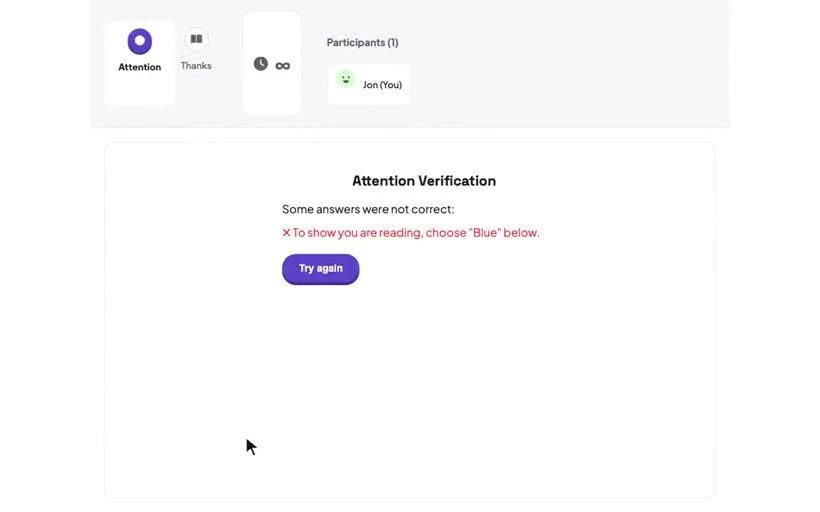
Attention checks
A question with a correct answer that the server checks. What a wrong answer does: retry, continue or end the study. Where Carrier records each attempt.
 4 clips
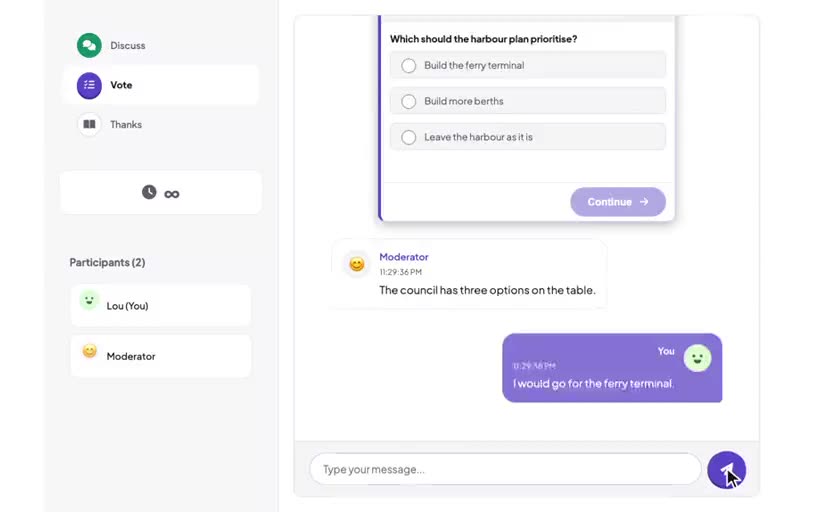
Standalone and embedded segments
A segment either fills the screen or runs in the chat before it. Learn how to embed a segment, and how the chat knows when to end.
 3 clips
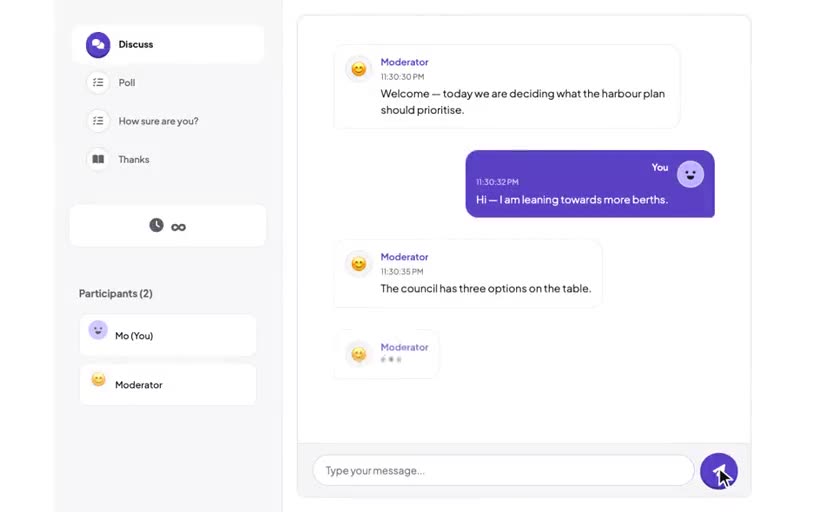
Cards in the chat: triggers and endings
When an embedded card appears, how it looks, what it does when it is complete, and how one card follows another.
 2 clips
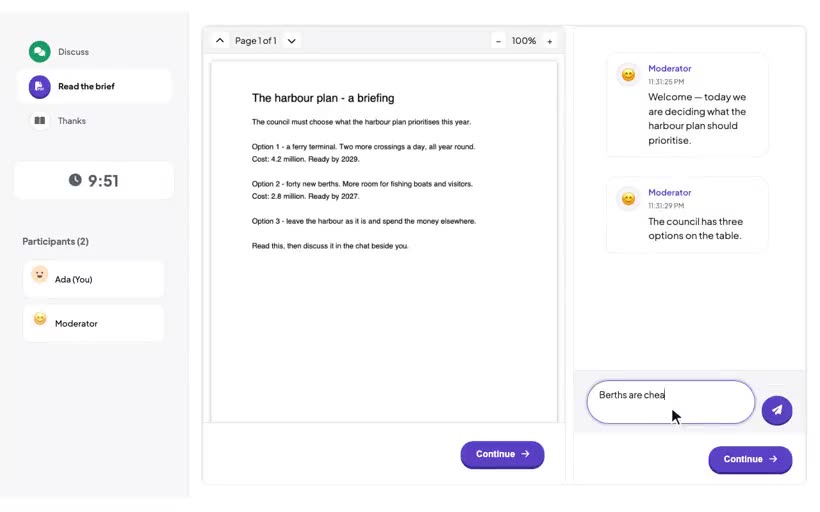
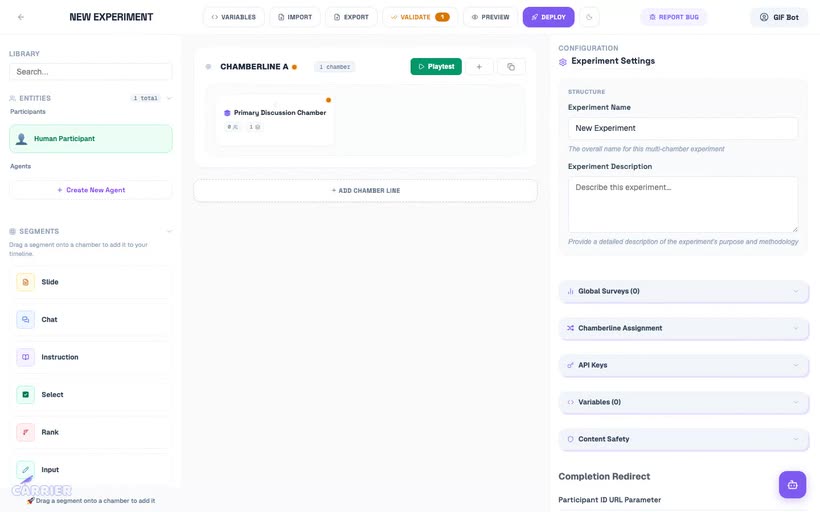
The split screen: reading beside the chat
An embedded segment in the Split layout fills the main area, and the chat moves to the side. Use it for a brief that participants read during the discussion.
 4 clips
A mediated group discussion
Carrier matches three participants. One participant is the mediator, and two participants discuss a policy question.
 6 clips
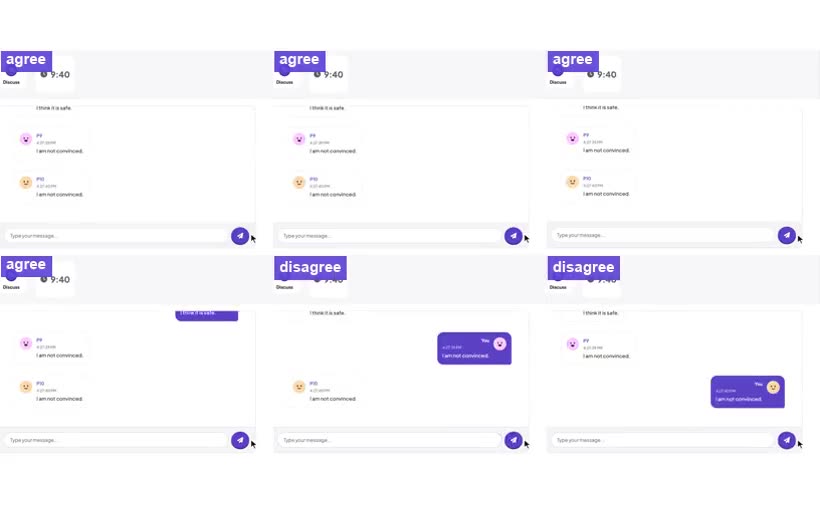
Control group composition with a survey answer
Two conditions of discussions with six persons. One chamberline makes groups of 4:2 and the other makes groups of 3:3, from the answer to "Nuclear power is safe."
 3 clips
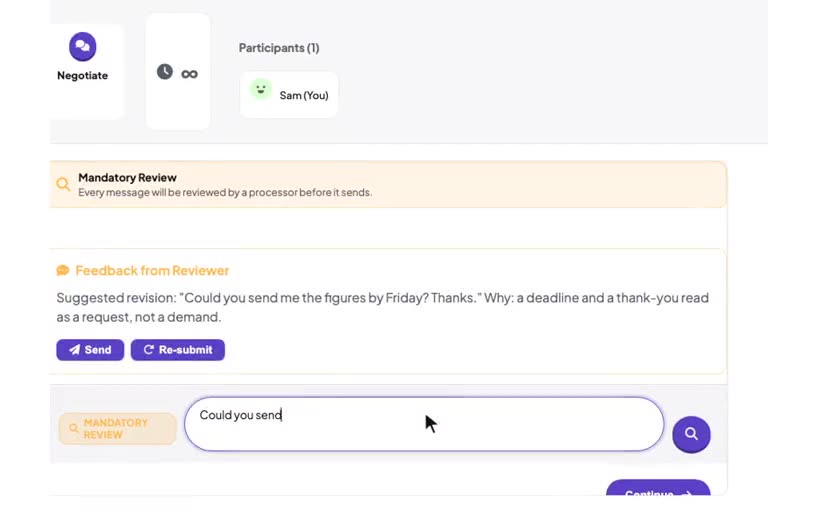
A hidden processor beside a human
An LLM reviews a message before the participant sends it, and suggests a revision. The participant makes the decision.
 4 clips
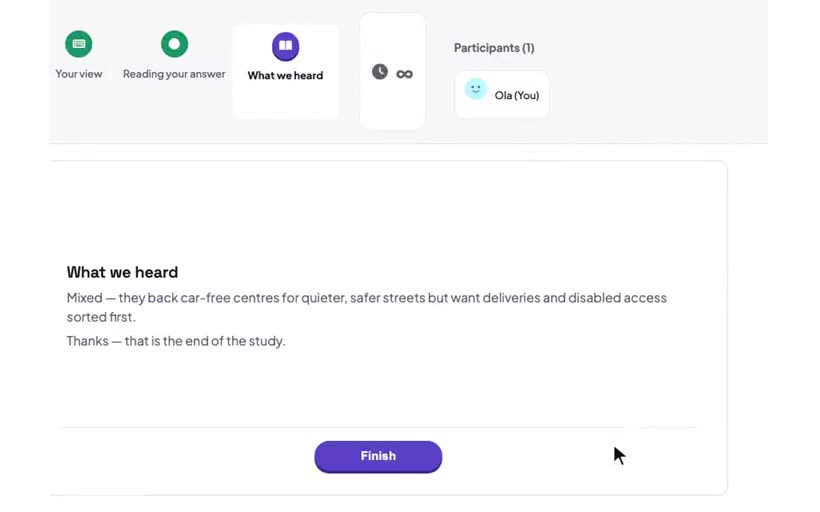
Read an open answer with AI processing
An AI-processed variable reads the free-text answer of a participant. The next page shows the result.
 5 clips
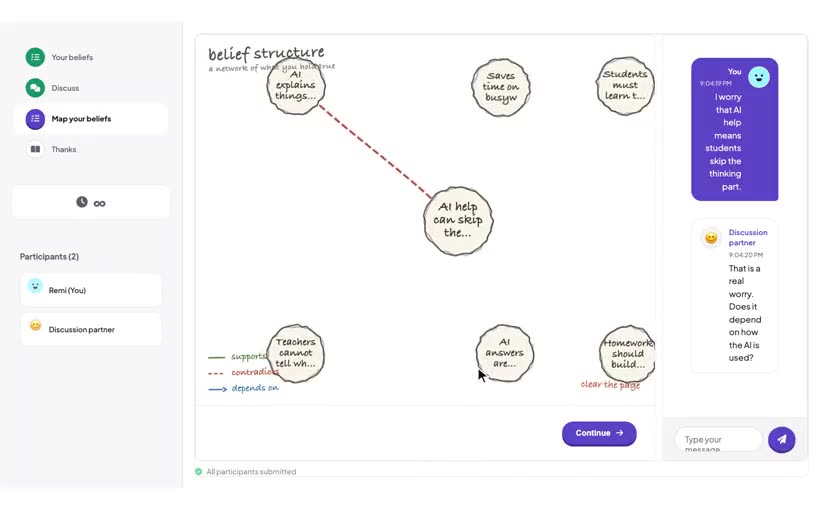
Update a belief map live with AI processing
A belief map next to a chat. An AI-processed variable reads the map and the conversation every 15 seconds and updates the map.
 2 clips
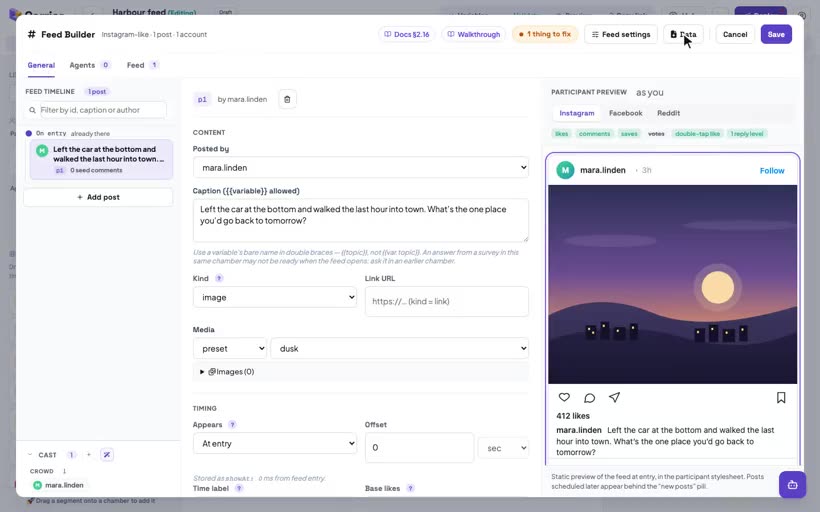
Add a feed to a chamber
Add a social media feed to a study. Drag the Social segment in, open its Feed Builder, and learn its parts.
 2 clips
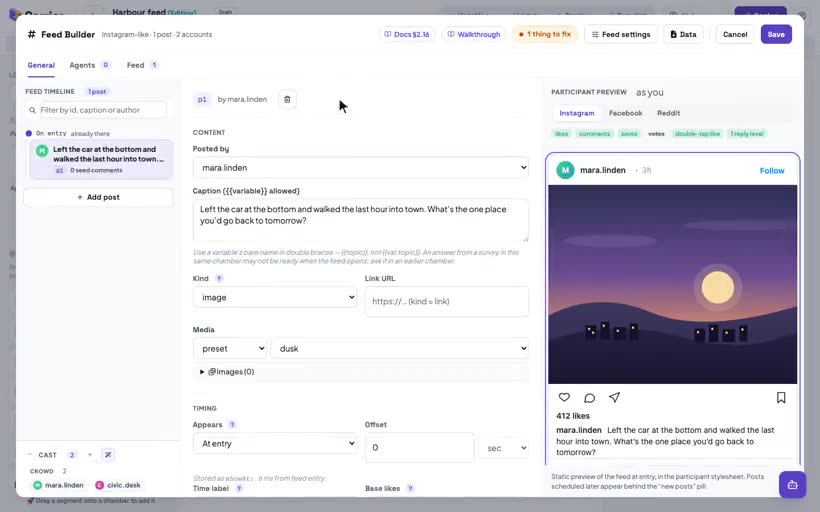
Accounts: who posts
The accounts in a feed: how to add, name and remove an account, and the difference between a crowd account and an agent account.
 3 clips
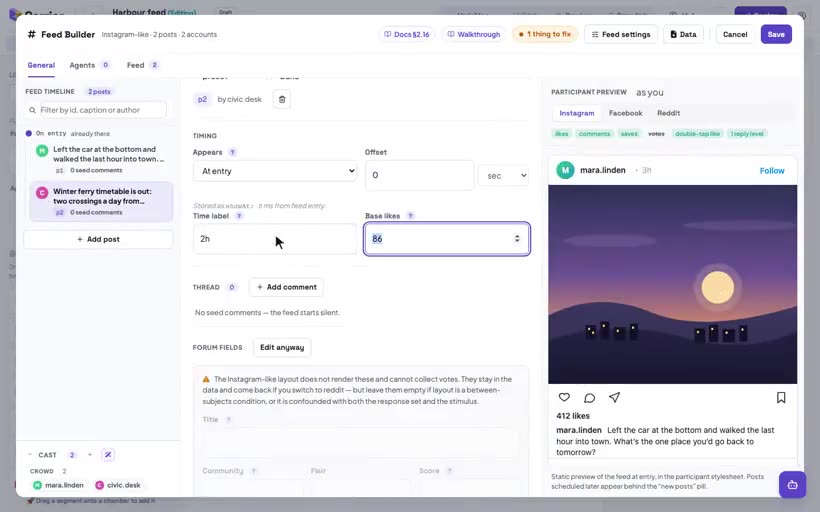
Write a post
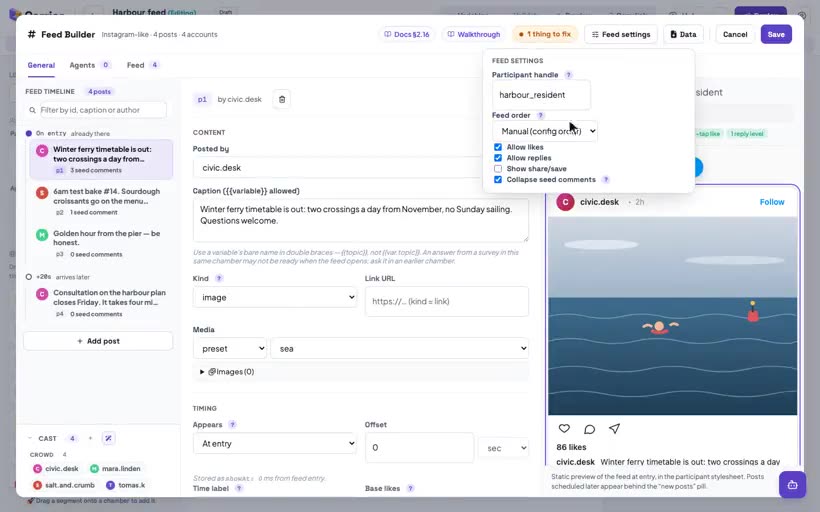
A post from one of the feed's accounts: its caption, image, time label and likes. Also how to remove a post.
 1 clip
Feed settings
The feed actions that participants can do: like, reply, share and save. Also the start state of comments, the participant's name and the post order.
 2 clips
The Instagram-like layout
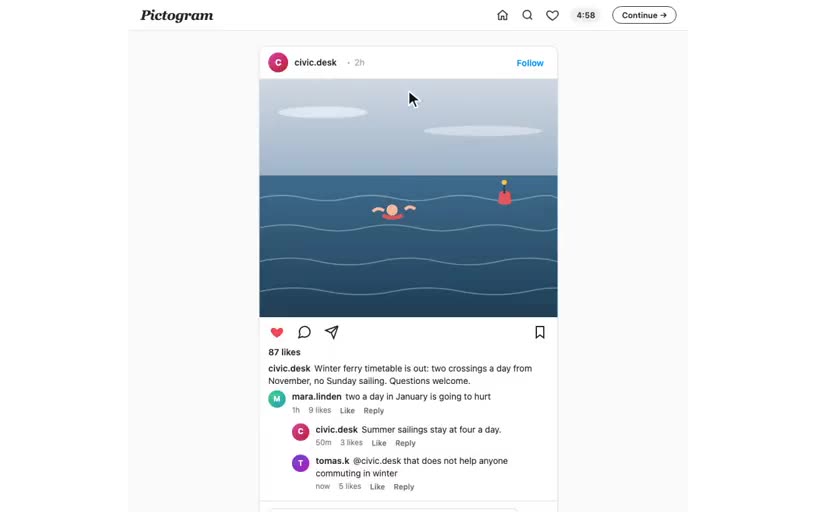
Posts that show the photo first, a double-tap like, and one level of replies. Also what the feed records when participants use them.
 2 clips
The Facebook-like layout
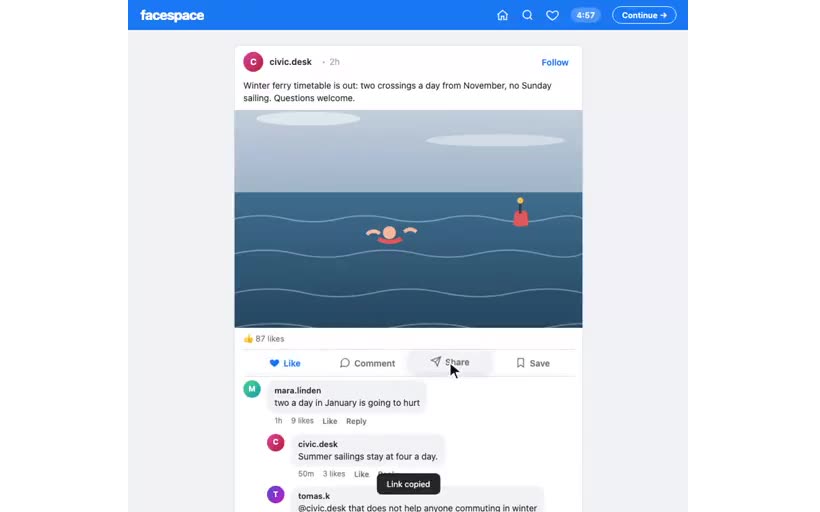
Posts that show the caption first, with a bar of labelled Like, Comment, Share and Save buttons. Also how to change a feed to this layout, and what the feed records.
 3 clips
The Reddit-like layout
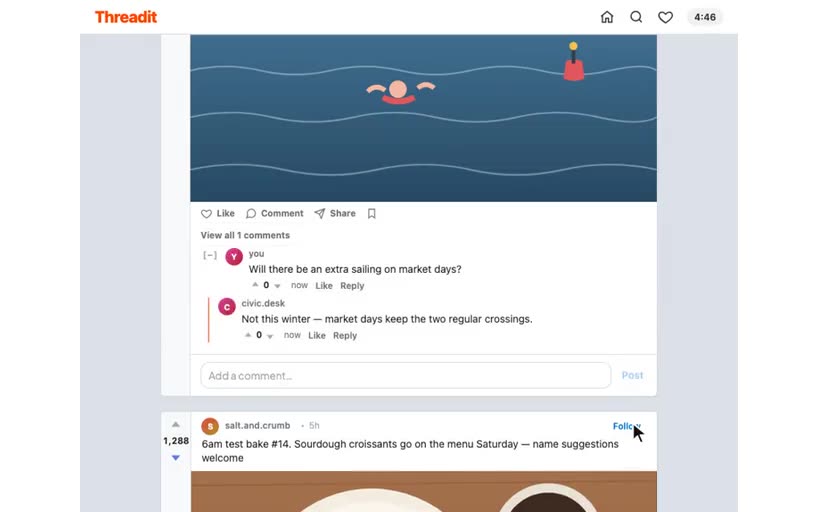
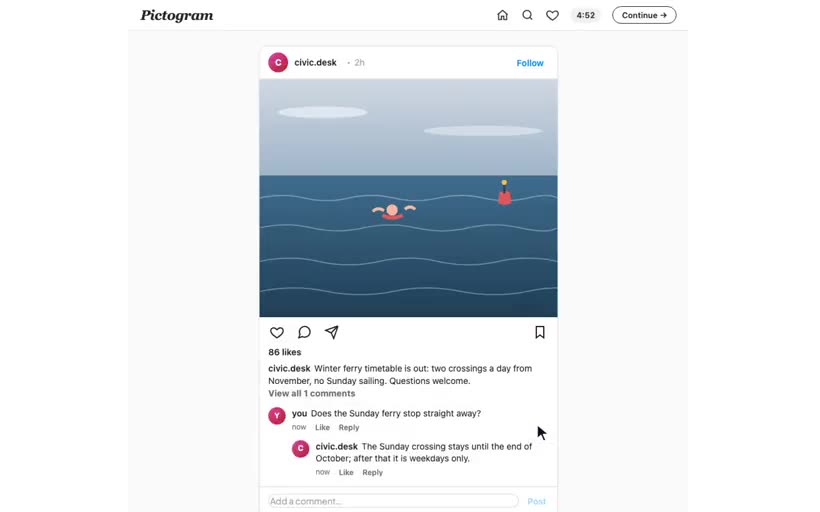
Forum threads: post titles, communities and scores, text posts and link posts, up and down votes on posts and comments, and nested replies.
 2 clips
Bind an agent to an account
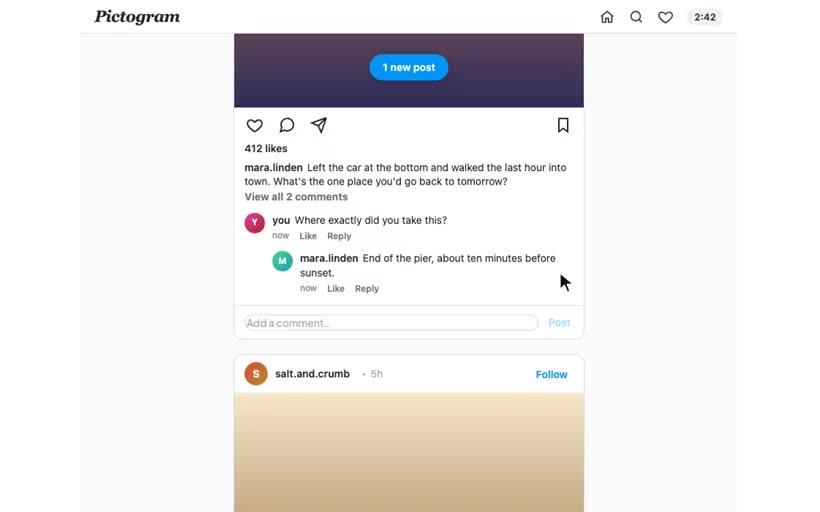
Make an agent reply to participants' comments as a feed account. Bind the agent, select its posts, and give its replies a human speed.
 7 clips
Build a social media study with simulated accounts
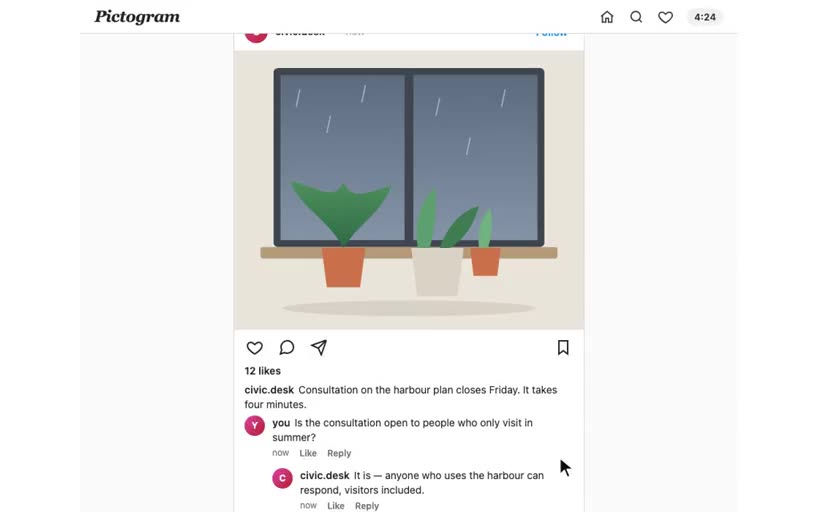
Make a feed in which simulated accounts reply to participants in persona. Add images, import a CSV of posts, bind agents to accounts, and do a test run.
 3 clips
Posts that arrive over time
Schedule posts to appear during the session behind a "new posts" pill. Delay agent replies so that they look like replies from people, not from bots.
 2 clips
What the feed records
The comments, likes, follows, votes and timestamped actions of a participant on a feed. You can use them as variables in later segments, and they are in the export.
 3 clips
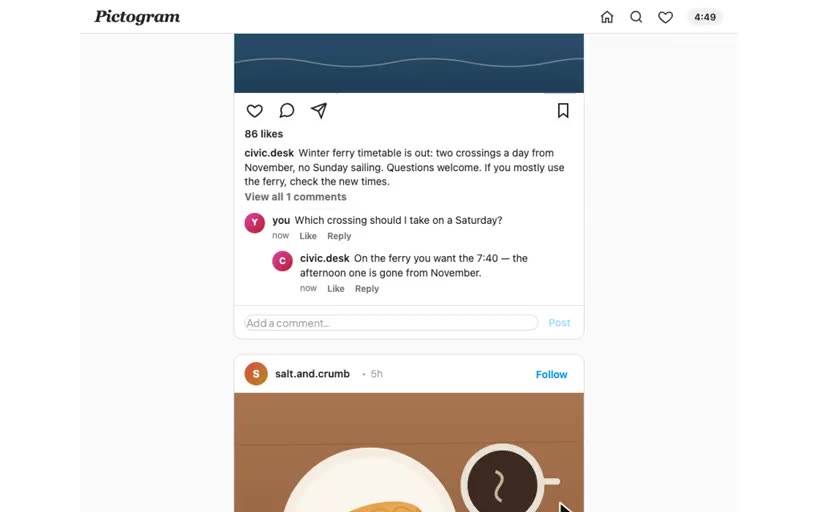
Personalised feeds and personas
Captions that show the participant's own survey answer, and agent accounts that read the answers before they reply.
 3 clips
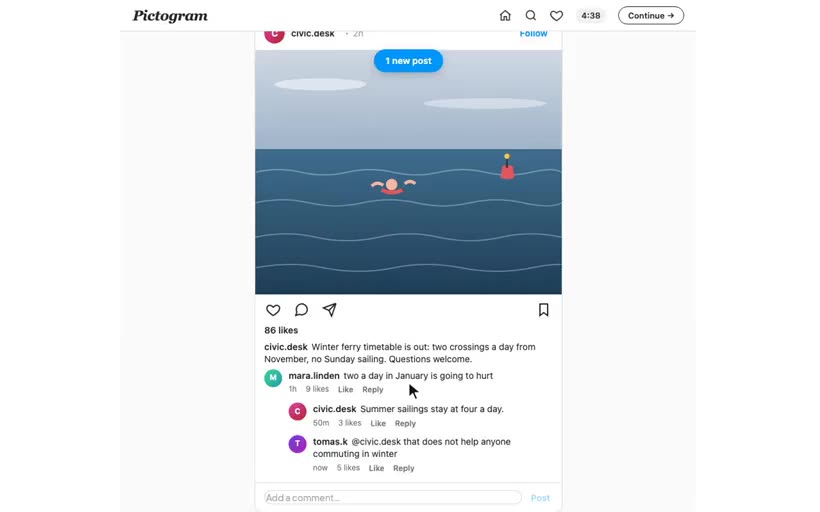
A static feed with scripted comment threads
Write all comments before the study: who writes what, who replies to whom, and when a reply shows. No live agents are necessary.
 7 clips
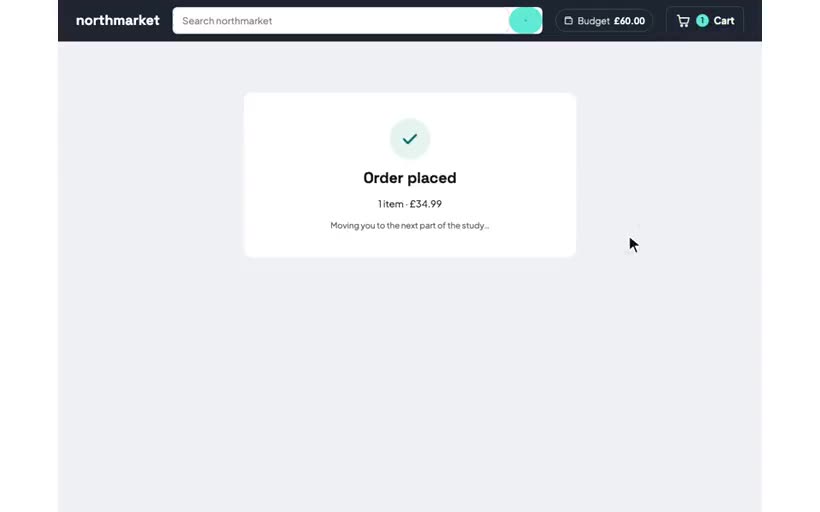
Build a shopping study with a budget and reviews
Make a mock store from an empty chamber: a catalogue and reviews from the starter kit, a budget, a shuffled grid, and a test purchase. Participants must check out to continue.
 4 clips
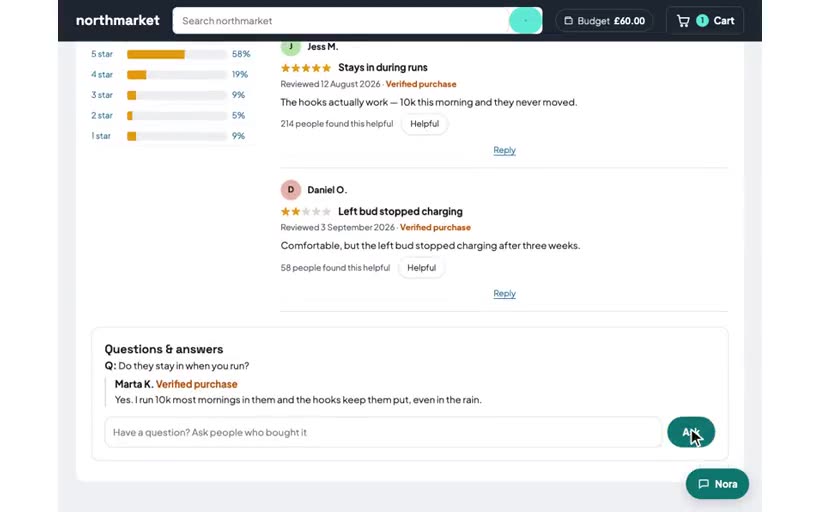
Add an AI shop assistant and buyers who answer questions
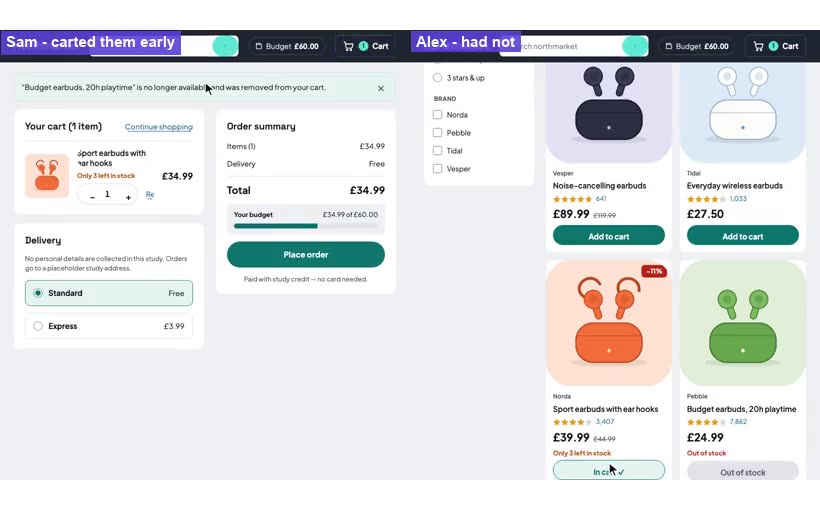
Connect chamber agents to a store: a buyer who answers product questions after a delay, and a shop assistant who knows the cart.
 4 clips
Change prices, stock and reviews while a shop runs
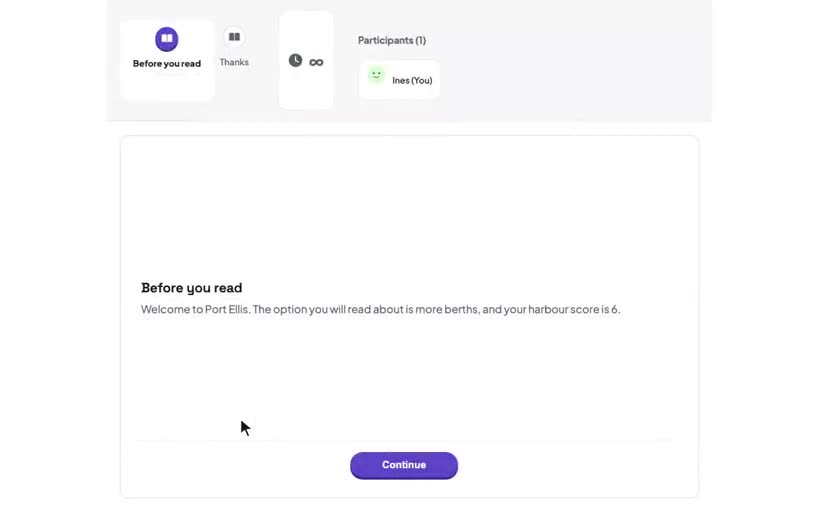
Schedule a price increase and a sell-out on the segment clock. Decide if they skip shoppers who have the product in the cart. Change a running shop for one shopper from the dashboard.
 5 clips
Variables, from the start
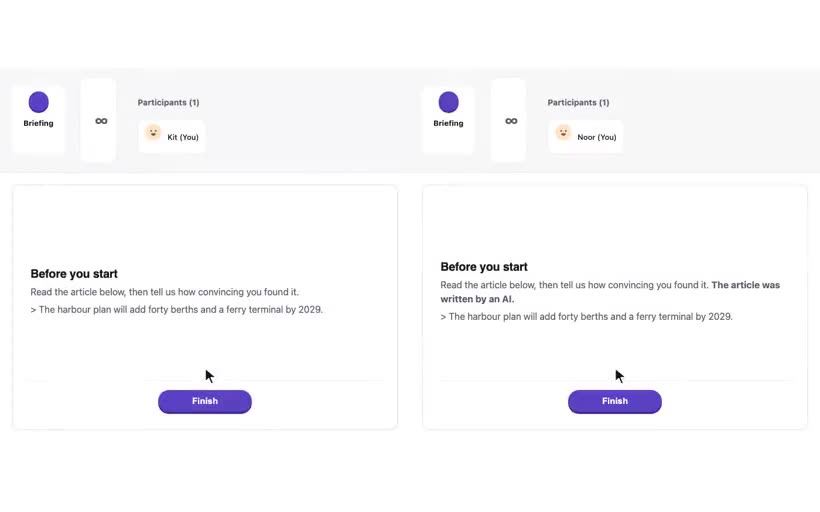
What a variable is, and three variables to start with: a constant, a random pick for each participant, and a score from answers. Each one shows in a page and in the export.
 5 clips
Two conditions, counterbalanced
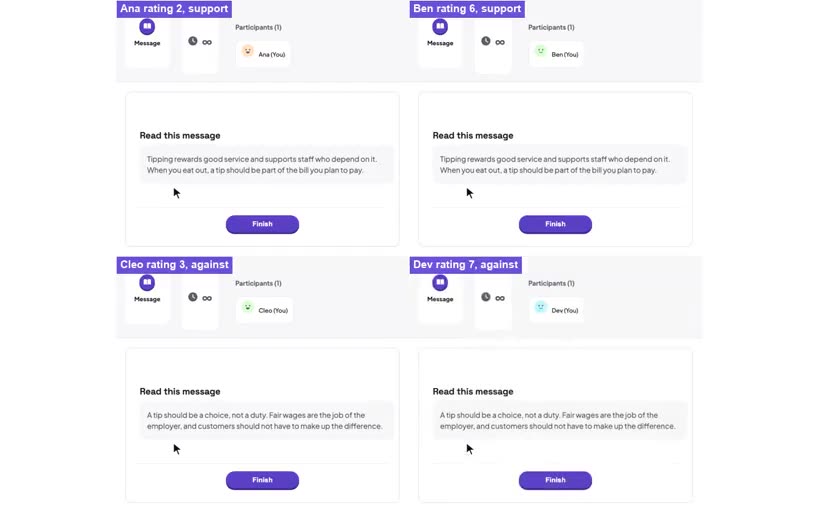
A second chamberline, assignment with a counterbalance variable, and conditions that stay separate.
 5 clips
Balance a baseline attitude across conditions
A pre-survey rating puts each participant in a band. Each band has its own line, so the conditions stay equal in each band and in total.
 3 clips
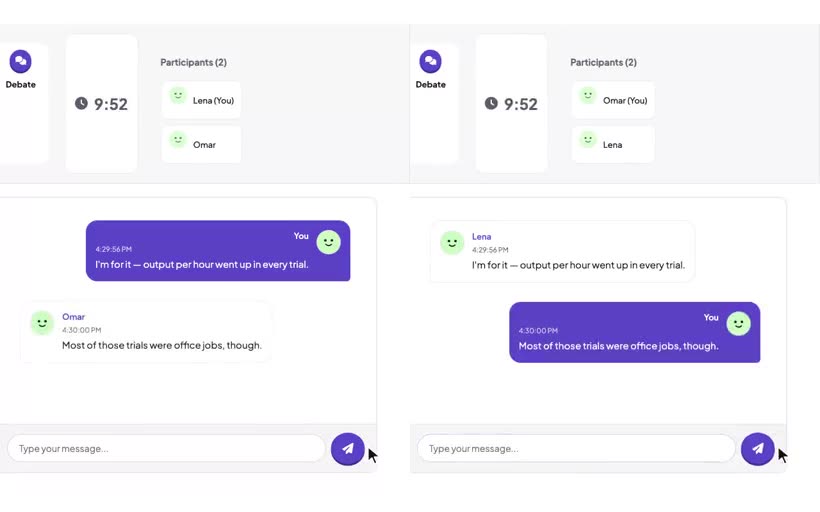
Match participants on a survey answer
An answer from an intake survey becomes a variable that pairs a participant who agrees with a participant who disagrees.
 3 clips
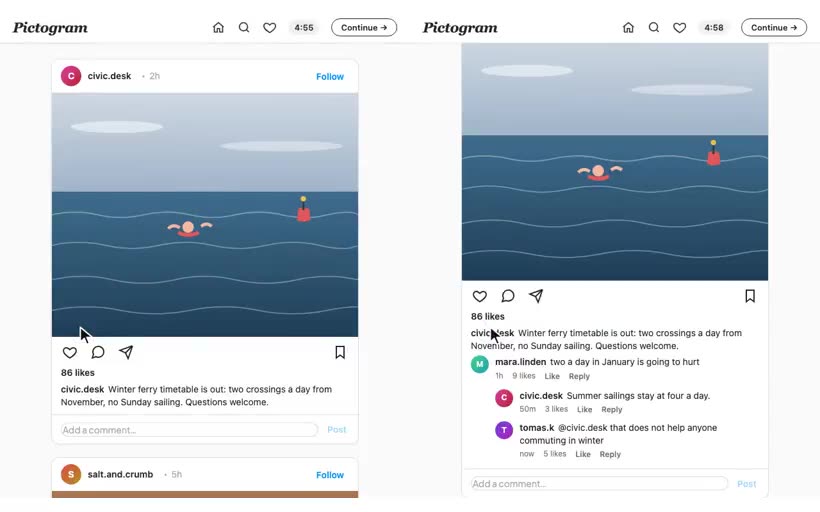
Shared surveys around per-condition feeds
One pre-survey and one post-survey that all conditions share, with a different feed between them, and where the answers are in the export.
 4 clips
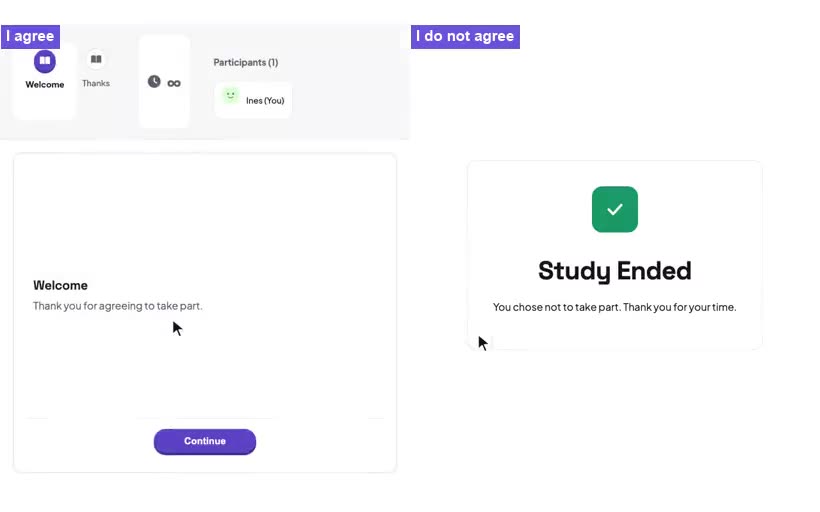
Use the pre-survey as a consent form
Add a consent question to the global pre-survey, and a rule that ends the study for anyone who does not agree. Carrier records these runs as Declined Consent.
 2 clips
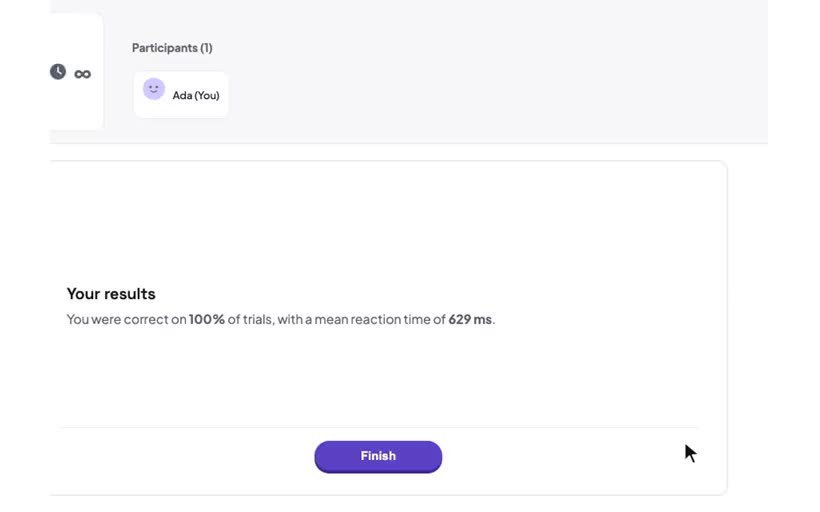
Drop a jsPsych task into a session
An existing reaction-time task runs without changes in a task segment. Its results come back as variables.
 7 clips
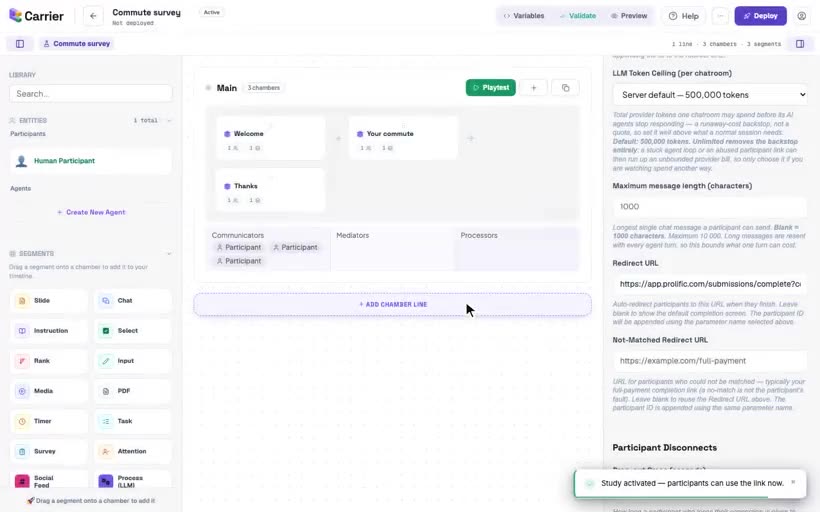
Test, deploy and share a study
Check a study, try it without recording data, connect it to a recruitment platform, deploy it, open it to participants and monitor it.
 4 clips
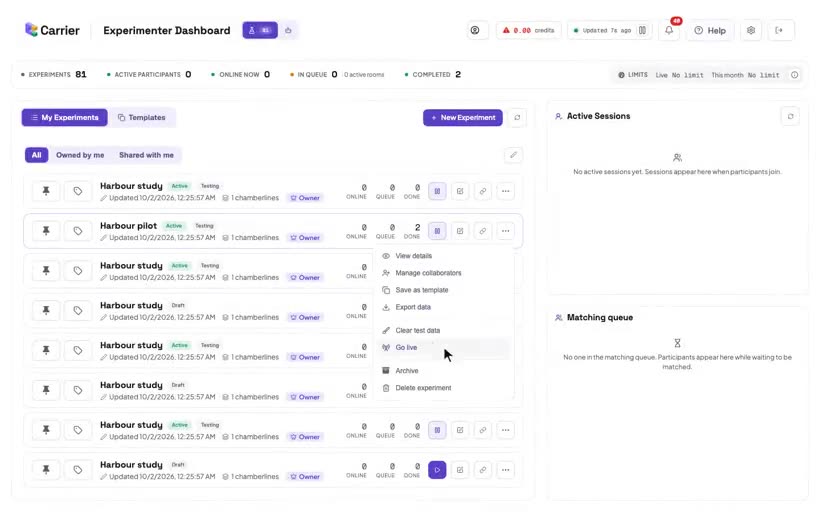
Piloting with your lab
Try a study with colleagues before real participants take part. Learn about testing mode, many test participants at the same time, test data, the export and Go live.
 3 clips
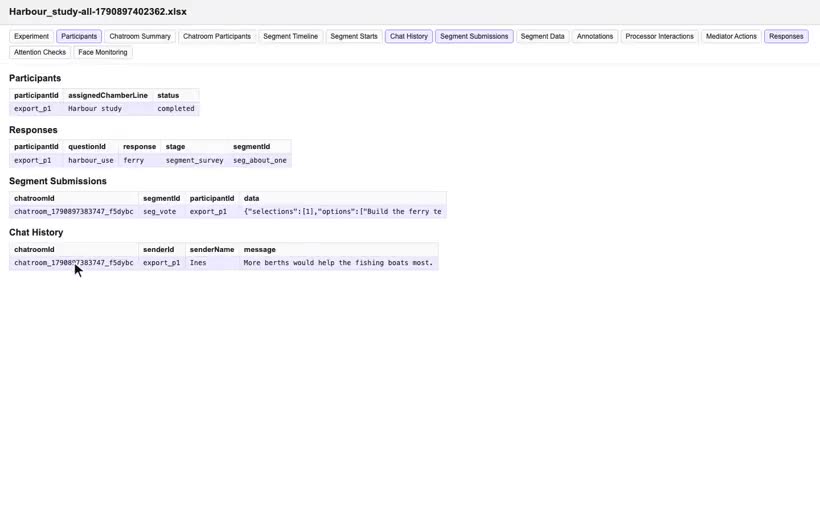
Your data: what the export holds
The three export formats, the contents of the main sheets (Participants, Responses, Segment Submissions, Chat History), and how to join them on participantId.
 9 clips
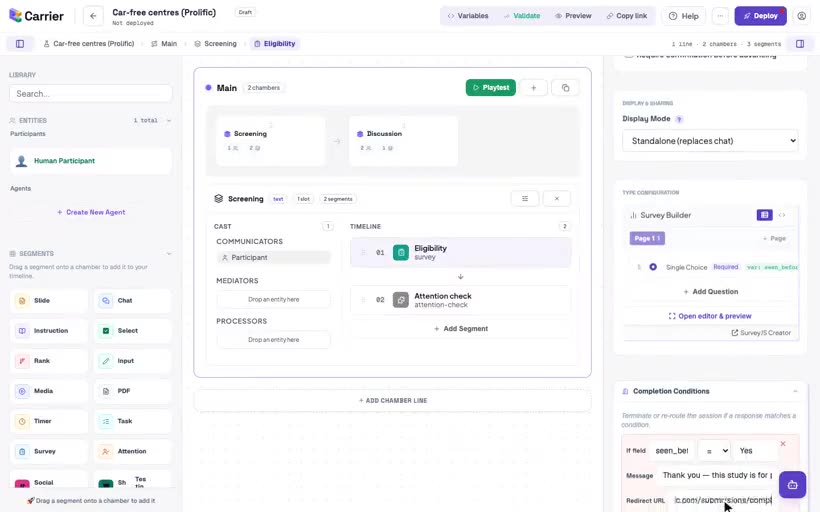
Recruit participants through Prolific
Step by step: the study link that Prolific opens and the participant ID. Then a different Prolific completion code for each exit: finish, no partner found, failed attention check and screened out.
 5 clips
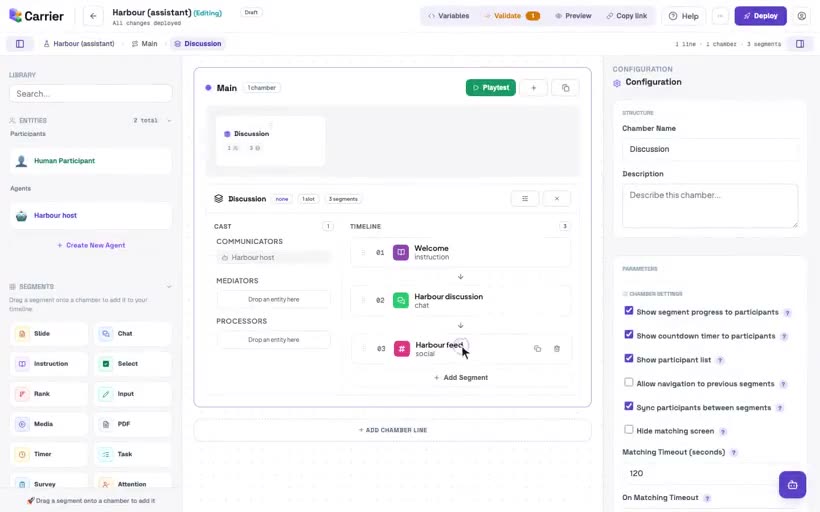
Build a study with an AI assistant
Connect an assistant such as Claude to Carrier (preview) and let it build a draft. Then examine the draft in the builder: History, and edits by you and the assistant at the same time. "Connect Claude Code or Codex to Carrier" and "Build a simple study with an assistant" show the setup and an example.
 3 clips
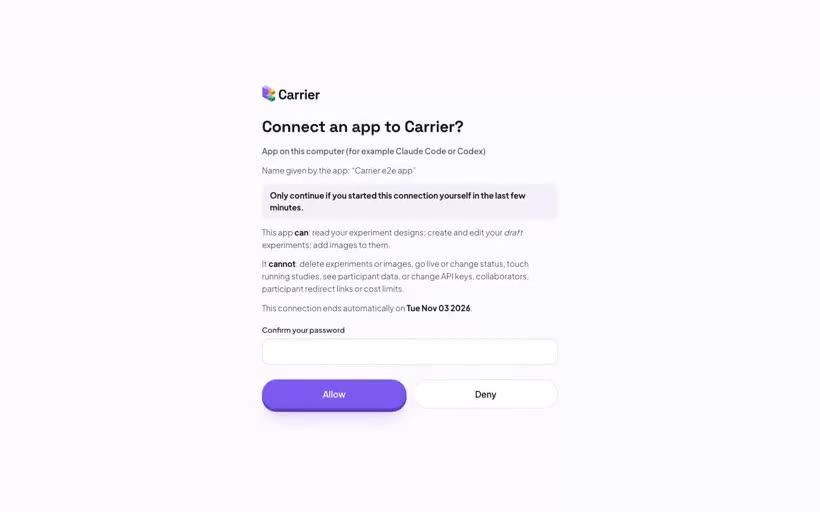
Connect Claude Code or Codex to Carrier
Add Carrier as a server in Claude Code or Codex CLI, allow the connection, and make your first five requests. The last steps list the usual problems and show how to disconnect.
 6 clips
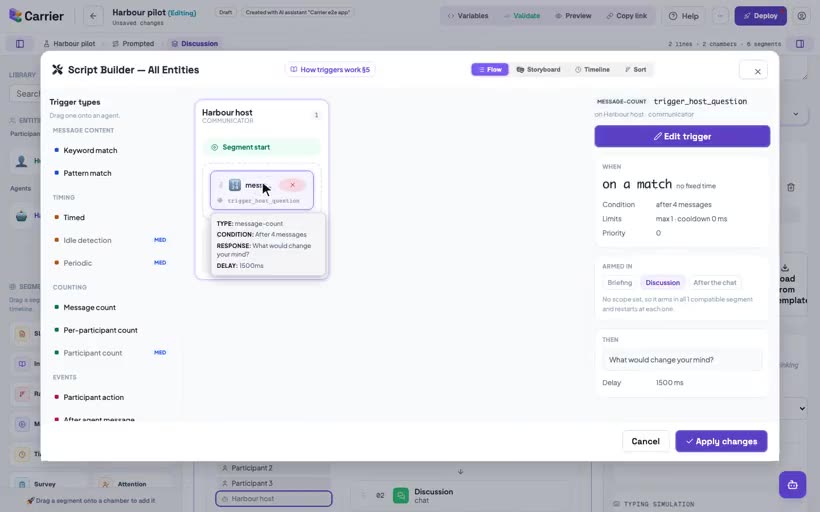
Build a simple study with an assistant
Build Harbour pilot, a group-chat study with two conditions, in six requests to a connected assistant. After each request, check the draft in the builder. You do the last step: the completion redirect and Deploy.
 4 clips
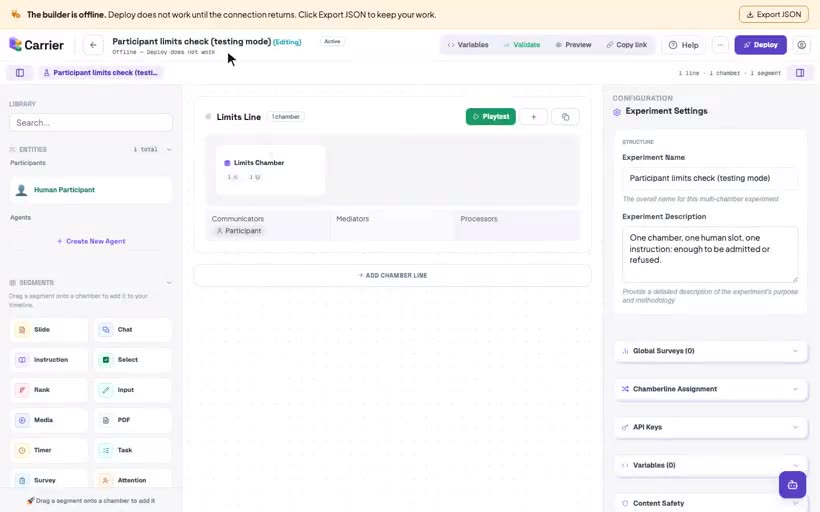
Keep your work when the builder is offline
What the offline banner means, how to export your work as a file, what Deploy says while offline, and what to do when the connection returns.
Nothing with that tag yet.